11 Frequently Asked Questions About Slidesgo
SlidesGo revolutionizes the way we build extraordinary presentations and learning materials. Whether you’re a veteran using SlidesGo or just getting started, you’ve more than likely faced some questions regarding how to use this tool efficiently. This blog will help you get to know several of the most frequently asked questions about SlidesGo, and if you can’t find what you are looking for, feel free to ask in the comments section.
How can I get started using SlidesGo Template?
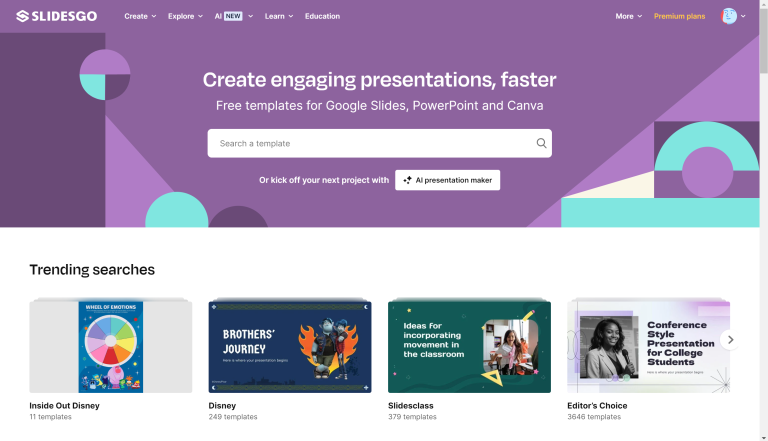
SlidesGo does a great job at categorizing the templates by Content Type, Industry, color, style and featured content. Simply click on the category that resonates with what you are looking for and explore both free and premium templates. You can also type in keywords in the “Search a template” search bar and explore the templates that matched the keywords.
How to check the number of available slides downloads?
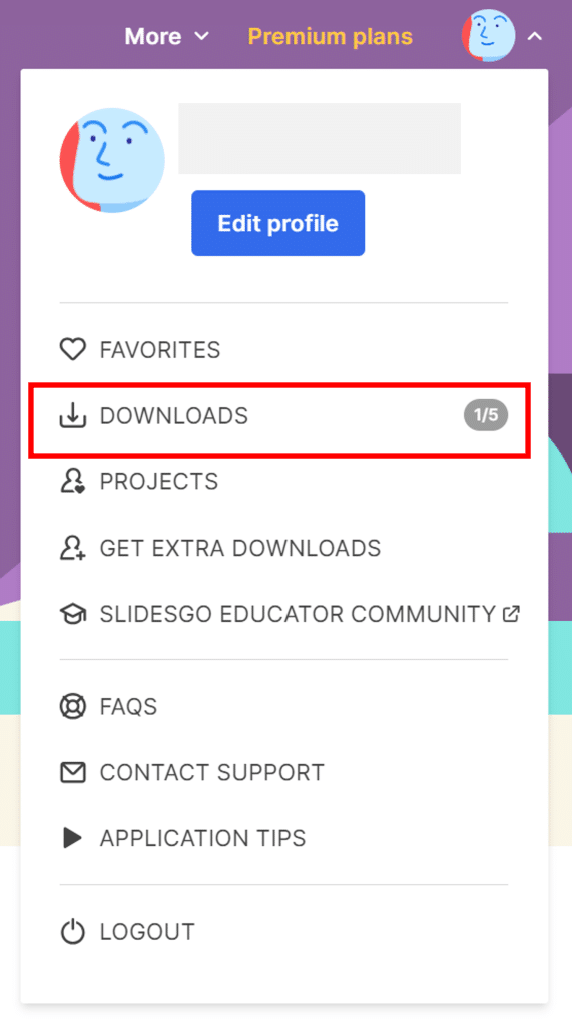
To check the number of available slides download, click on the profile picture icon on top right and scroll down to the option that says download. The number to the right will indicate the number of presentations available for download. As a free user you will have the opportunity to download 5 presentation templates and month and with a premium subscription you will have unlimited access to download SlidesGo Templates.
SlidesGo’s well kept secret is that you can earn 4 free presentation templates each time one of your friends opens a SlidesGo account. In a given month you can earn upto 20 free Google Slide or PowerPoint templates through referral. Click on this link to learn more about referrals and get your referral link.
What resources are available to become a pro at SlidesGo?
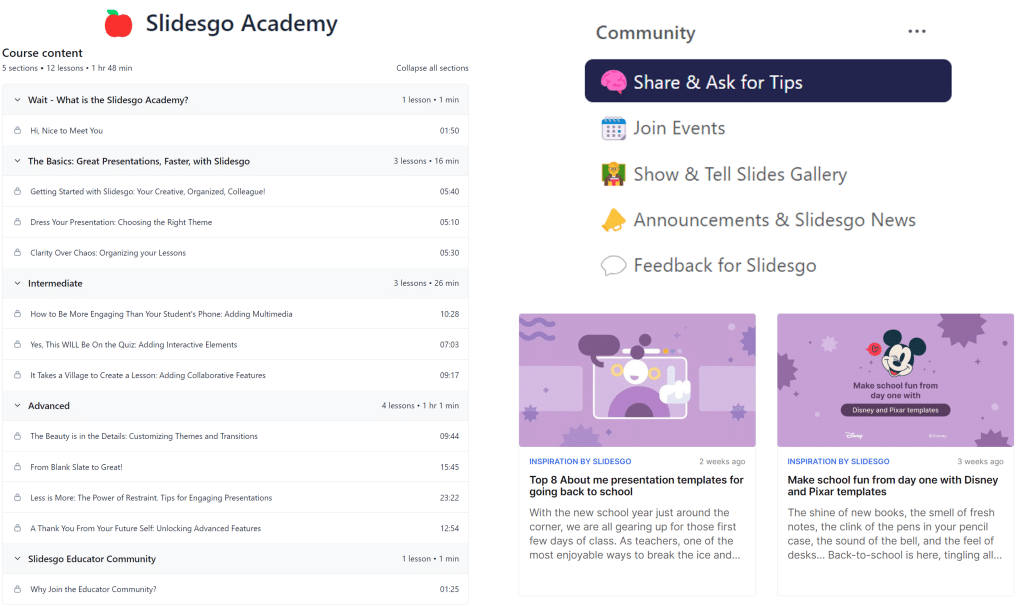
SlidesGo Academy is a two-hour course on SlidesGo that helps users create both creative and engaging slides. Additionally, SlidesGo also has blogs that feature articles on different ideas for using SlidesGo Templates. Lastly, SlidesGo has an Educator Community which is basically community for teachers. IT consists of the following items:
- Share & Ask for Tips
- Join Events
- Show and Tell Slides Gallery
- Announcements and SlidesGo News
- Feedback for SlidesGo
Use these free tools to master creating slides with simplicity and impress your audience.
Does SlidesGo have tips for Google Slides and PowerPoint Presentation?
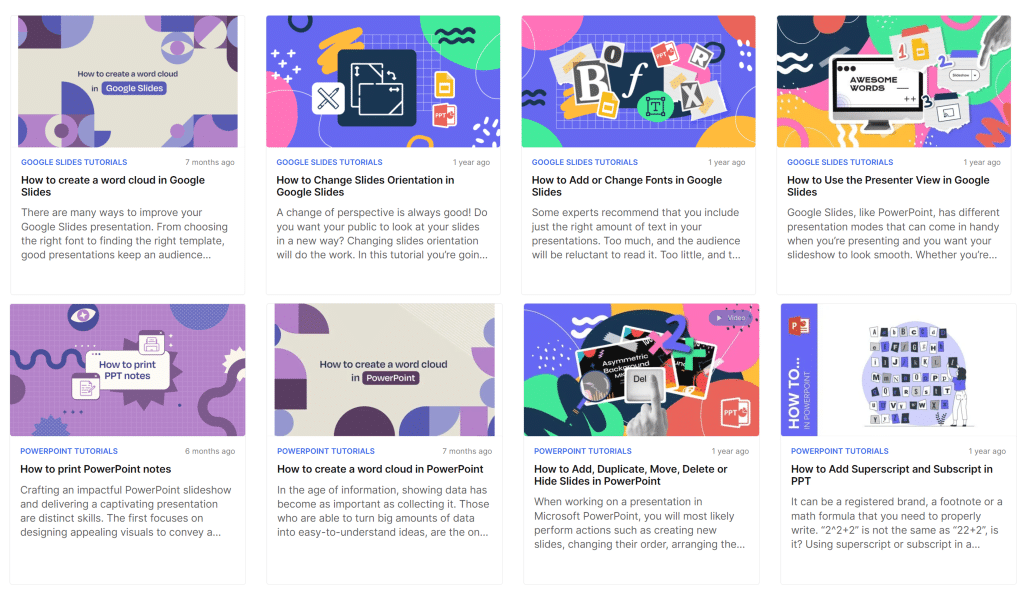
Yes, SlidesGo has tips for Google Slides and PowerPoint Presentation since you can download the SlidesGo Templates into both of these platforms. Click on the Learn tab on SlidesGo homepage and select either PowerPoint Tutorials or Google Slides Tutorials.
How to create a presentation in SlidesGo with a prompt?
There are couple steps to follow to create a presentation in SlidesGo with a prompt:
- Type in a descriptive topic
- Choose a writing tone (Unspecified, Fun, Creative, Casual, Professional or Formal)
- Choose a Language (Either Auto or one of the 25 languages available)
- Choose the number of slides (A number between 6 to 14).
- Choose a style (Minimalist, Colorful, Geometric and Professional)
- Click Generate Presentation
- Use the online editor to make any changes to the slide as you see necessary.
How is SlidesGo useful for School and University students?
SlidesGo is a very useful tool for school and university students as it provides over 20,000 free presentation templates along with AI tools such as AI Presentation Maker and AI Sketch to Image. To learn more about the benefits of SlidesGo for School and Univeristy Students, please visit: https://slidesgo.com/for-students.
How is SlidesGo useful for Teachers?
SlidesGo is handy tools for teachers in the 2020s. The five most commonly used tools by teachers are listed below:
- SlidesClass Templates
- Teacher’s Toolkit
- AI Exit Ticket
- AI Lesson Generator
- SlidesGo Educator Community
What are some of the graphic elements in SlidesGo?
The following graphic elements are available in SlidesGo:
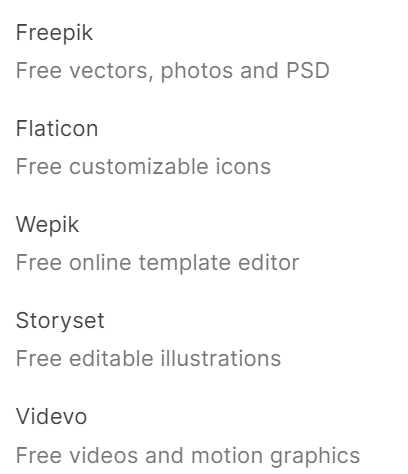
- Freepik: Free vectors, photos and PSD
- Flaticon: Free customizable icons
- Wepik: Free online template editor
- Storyset: Free editable illustrations
- Videvo: Free videos and motion graphics
Does SlidesGo provide tips for a giving a great presentation?
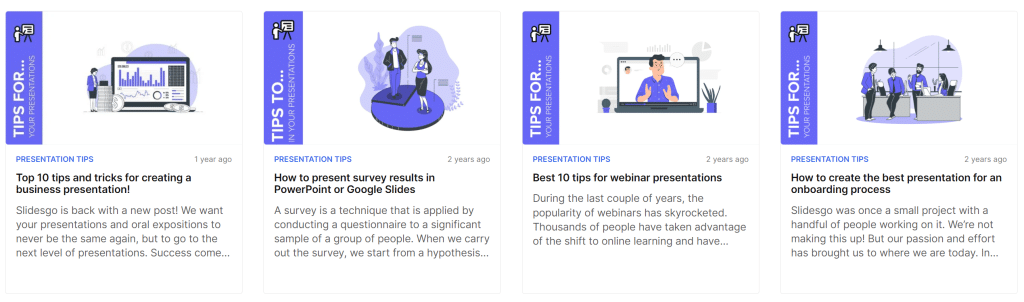
SlidesGo does provide tips to enhance your presentation skills. Click on the Learn tab on SlidesGo homepage and select Presentation Tips to get started.
Can I animate SlidesGo presentation?
You can use all the animation features of Google Slides and PowerPoint to animate the exported SlidesGo Template. Additionally, there are over 1000 Interactive & Animated SlidesGo Templates available which have animation features. Check out some of the animated templates in the GIF below:
Apart from SlidesGo Template and AI Presentation Maker, what other features does SlidesGo have?
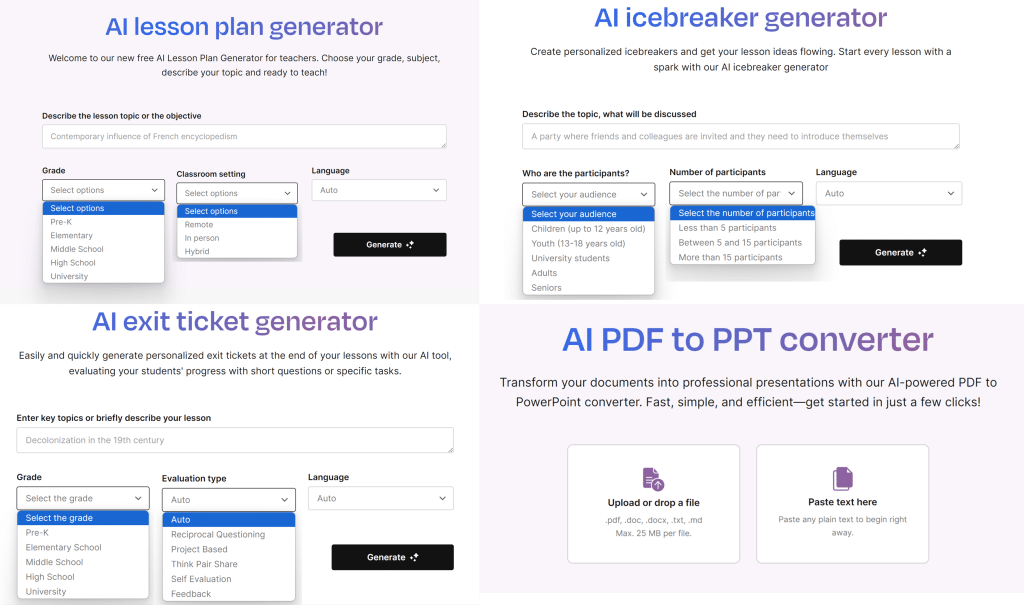
SlidesGo also has various other AI tools such as AI Ice Breaker Generator, AI Exit Ticket, AI Lesson Plan Generator, and AI PDF to PPT Converter. You can learn more about each tool on my blog The Essential Guide to SlidesGo – AI Presentation Maker. You can also learn more about the following questions below on that blog as well.
- What are the free features of SlidesGo?
- What are the benefits of the SlidesGo Premium Version?
- How can I install the SlidesGo theme in Microsoft PowerPoint, Google Slides, or Canva?
If there are questions that were not answered in this blog post but you would be interested to learn more about, feel free to visit SlidesGo’s official website or add your question in the comments section below.