11 Essential AutoCAD Intuitive Commands
AutoCAD can be daunting, but surprisingly there are several AutoCAD intuitive commands which you likely use daily in other software. Just as you create, open, and save documents in Microsoft Word, or cut, copy, and paste text, AutoCAD offers these same fundamental operations. However, AutoCAD takes these functionalities to new capabilities and has nuances to it. Lets explore how these simple functions take on a new life in AutoCAD.
Start a New Drawing
Starting a new drawing in AutoCAD is as simple as clicking CTRL+N or clicking the new button from the Application Menu Bar.

You can preset layers, units and other essential properties for a new AutoCAD file by creating a template. Lets learn how to create a template and open it below.
Templates in AutoCAD
AutoCAD template are preset AutoCAD File used for starting a new drawing. The extension of an AutoCAD file is .dwt. There are various settings and customization for a template some of which are listed below:
- Basic Settings: Provide pre-configured layers, units, drawing scales, text styles and dim styles.
- Layout: Have a preconfigured layout sheet with viewport, sheet set up and also title block.
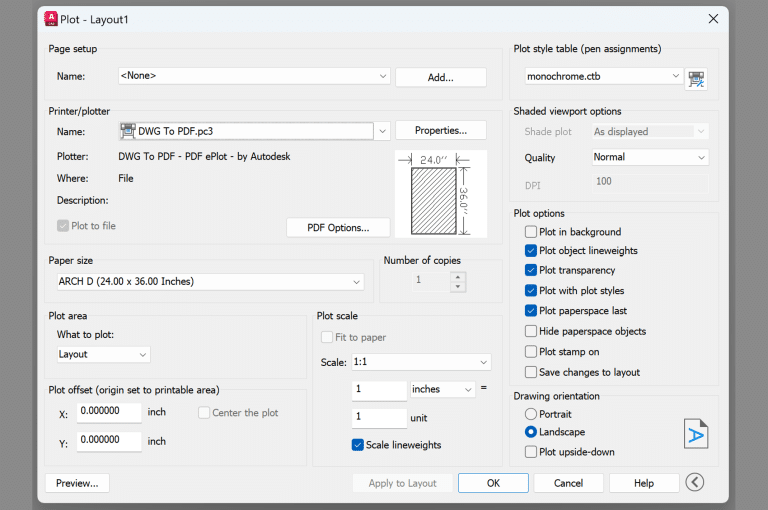
- Plot Settings: Provide standard printing configuration such as printer name, sheet size and more.
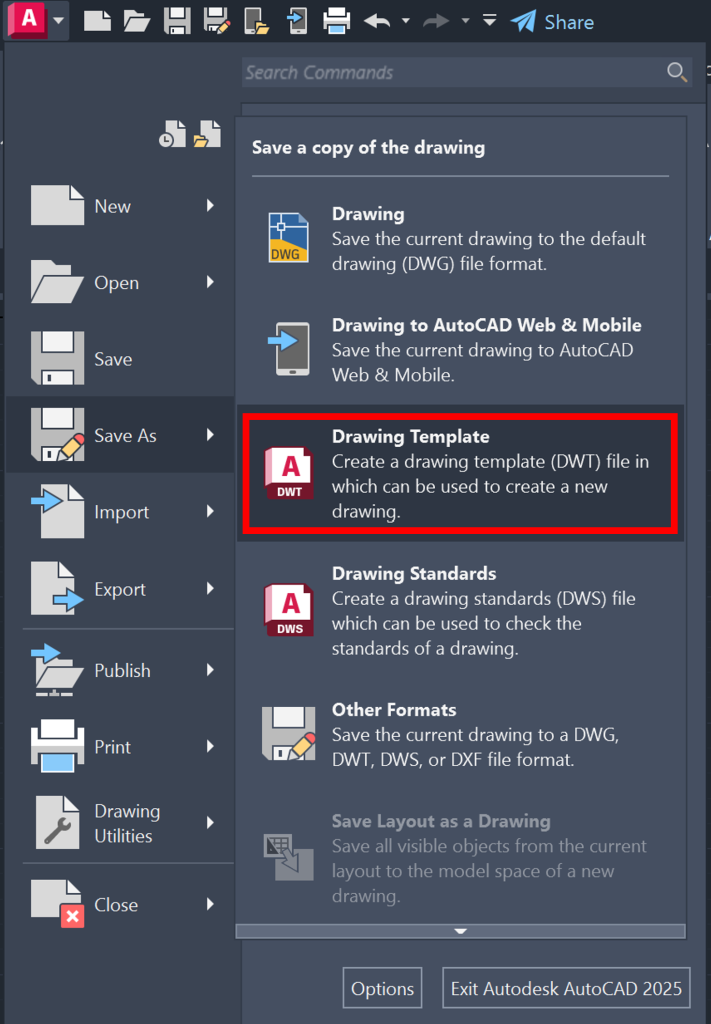
Each time you start a new drawing, you will get the option to choose an existing template. Additionally, you can configure the settings and customization and save the file as a template. To do so click on Application button, then on Save As, and the choose the Drawing Template option.
Hope you now understand how using a template can save you time by eliminating the need to reconfigure settings in your AutoCAD file every time you start a new one.
Open an AutoCAD File
You can a file in AutoCAD using multiple ways. Below are three commonly used methods:
- Drag and Drop the AutoCAD file from the folder to the AutoCAD tab
- Use the shortcut CTRL+O
- Double-click on the AutoCAD file (Will open the CAD file in the default version of AutoCAD)

It is common practice to open AutoCAD files in Read-Only mode. This is ideal when you want to view the file or copy certain elements from it but not make any changes to it. It ensures that no edits are made by mistake in the CAD file if you intend to simply view it.
Another, more advanced method to open a file in AutoCAD is through the sheet set manager. The sheet set manager organizes all the files in a planset. Simply right-click on the sheet you want to open, and then you can either open the file to edit or open it read-only.
Save an AutoCAD File
It is essential to save your AutoCAD file frequently to ensure that you don’t loose any work in case of a crash (unfortunately large CAD files do tend to crash). I usually try to save my work every 5-10 minutes by hitting QS+Enter or Ctrl+S on your keyboard.

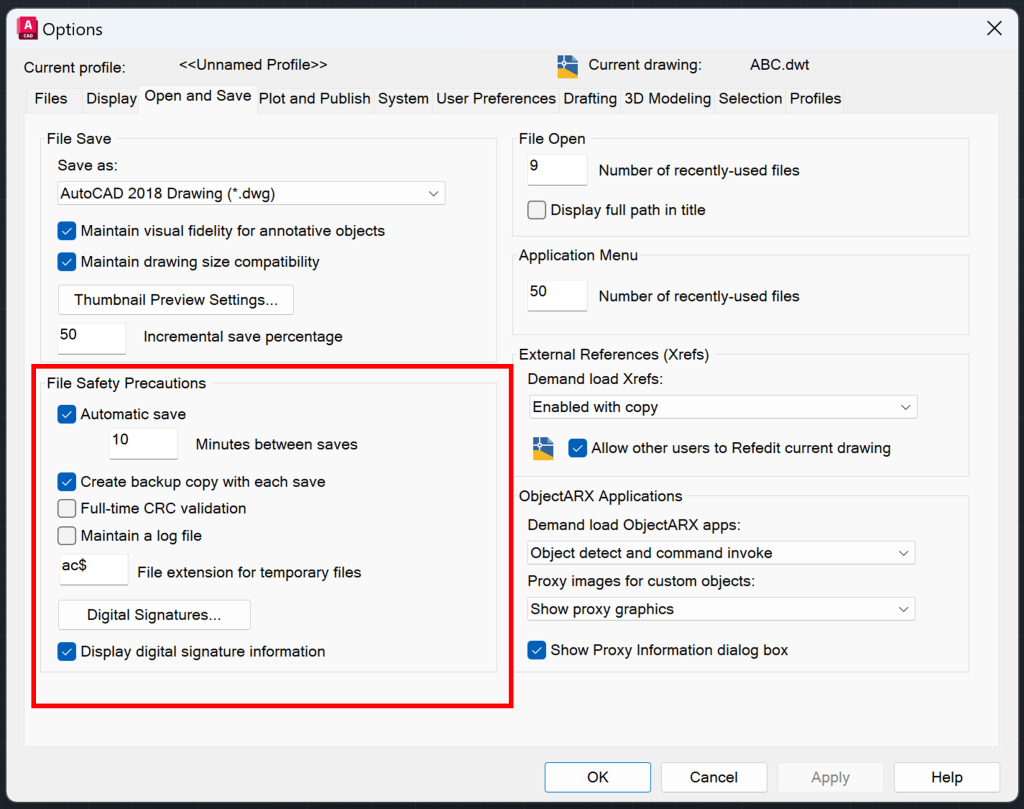
Another important thing to ensure is that AutoSave is on. This will let AutoCAD save your file at certain intervals, which is 10 minutes by default. You can access these options by clicking OP in the command line and choosing the Open and Save tab.
Save As an AutoCAD file
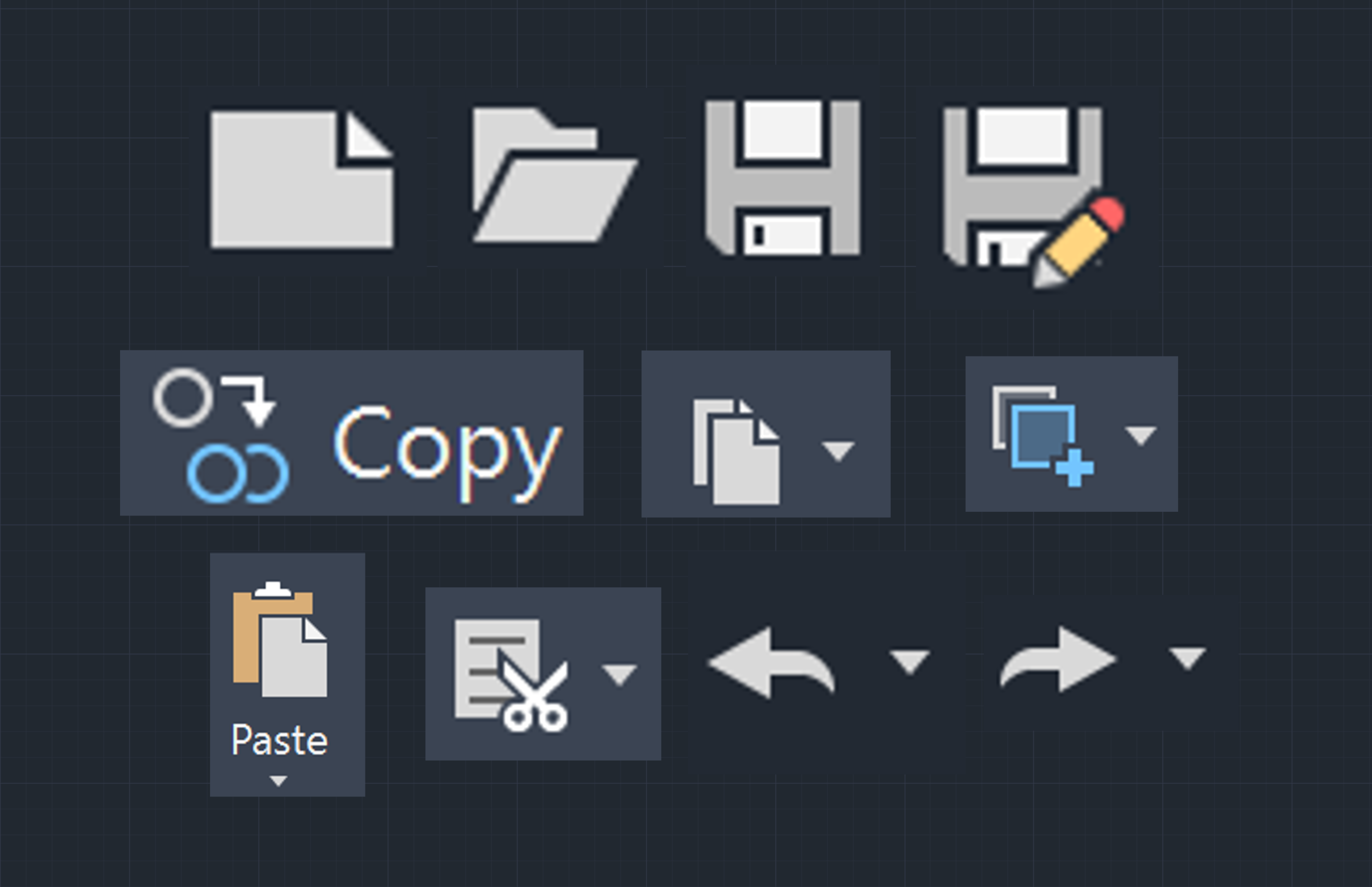
It is a common practice to Save As your AutoCAD file to create a copy of the existing file while maintaining the integrity of the existing file as is. You can Save As a file by clicking on the Save As button on the Quick Access Toolbar or typing SAVEAS in the command line. Below are few typical applications of Save As in AutoCAD.
- Archive/Backup: Create a Copy of the Existing Version before making major changes to it.
- Exporting File to other Format: Change the format of the file from DWG to DWT, DWS and DFX.
- Change Drawing Units: Save a copy of the file with different units.

Cut in AutoCAD
Cut is used in AutoCAD to remove elements from a drawing and place them in another drawing. You can also use cut to simply remove elements in a drawing, but the ERASE function would be a better alternative to that. You can cut by using Ctrl + X or simply activate the Cut function from the Ribbon (Home > Clipboard > Cut).
Copy in AutoCAD
Copy command is used in AutoCAD to duplicate objects in the same drawing between multiple files. There are three nuances of the copy function that are worth noting.
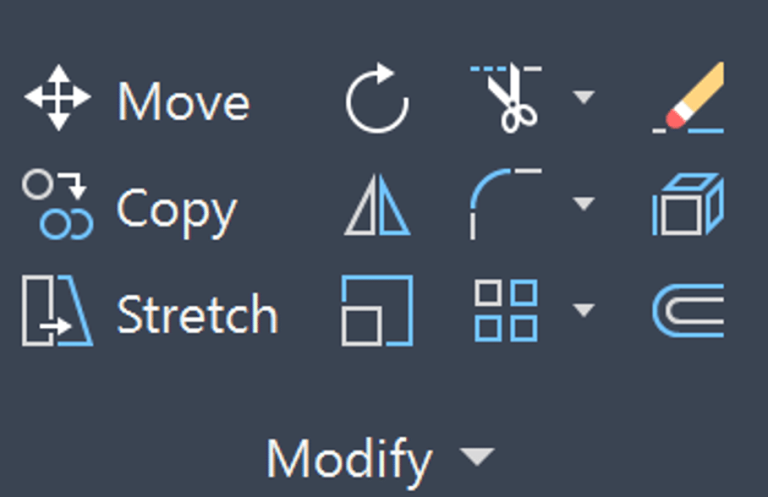
- Copy: Select an object, activate copy command and paste at a specified distance. You can activate it by typing “CO” in the command line or clicking the COPY button in the modify tab.
- Copy Clip: This command is useful to copy an item in one drawing and paste it into another drawing. You can activate it by clicking CTRL+C or clicking Copy Clip in the clipboard tab.
- Copy with a Base: When you want to copy something from one drawing to another with a specified point, then copy with a base is a useful command. This command is useful when copying objects with a specified insertion point. It allows you to pick a base point on the copied objects, making it easier to place them accurately in another drawing. You can activate this command by typing COPYBASE in the command line or choosing the Copy with Base Point option in the Clipboard Menu.
Paste in AutoCAD
Once you have copied an object in AutoCAD, you can paste it by clicking Ctrl+V or clicking the Paste button on the Quick Access Toolbar or Ribbon (Home > Clipboard > Paste). One cool feature in AutoCAD is that you can paste objects from one drawing to another at the same coordinates (as long as the UCS is the same in both drawings). This ensures accuracy when copying and pasting objects from one drawing to another.
Undo in AutoCAD
Undo is used to reverse any edits made in AutoCAD. Note that undo may not affect on some commands or system variable such as open, close, save, regen etc. Checkout AutoCAD Documentations on what cannot be Undo in AutoCAD. There are three ways to undo in AutoCAD:
- Keyboard Shortcut: CTRL+Z
- Command Line: U or UNDO
- Quick Access Toolbar: Click on the Undo button in Quick Access Toolbar as shown below

Redo in AutoCAD
Redo reverses the effect of the last undo and it must immediately follow undo. Basically you cannot perform multiple undo and hope to be able to reverse all of it. Additionally you cannot perfrom other commands after an undo and hope to reverse the last undo. There are three ways to redo in AutoCAD:
- Keyboard Shortcut: CTRL+Y
- Command Line: REDO
- Quick Access Toolbar: Click on the Redo button in Quick Access Toolbar as shown below

Regen in AutoCAD
Regen is short for Regeneration. As you start working on complex AutoCAD drawings, you will notice that at certain times, the objects in AutoCAD may not be displayed the same as you intend them to. When you type RE in the command line, AutoCAD will refresh the display of all objects in that viewport. This will ensure that your screen truly reflects your design intention.
AutoCAD Intuitive Commands in a Nutshell
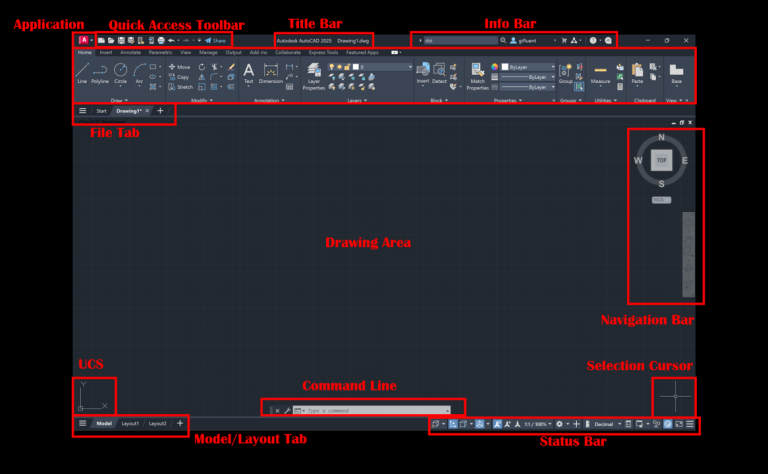
It is crucial to have an understanding of the AutoCAD User Interface to find these commands in AutoCAD. Below is a summary table of all the 11 Intuitive commands that we learnt in this blog.
| AutoCAD Command | Purpose | Keyboard Shortcut |
| New | To start a new AutoCAD Drawing | CTRL+N |
| Template | Preconfigure settings for a new AutoCAD Drawing | CTRL+N or QNEW |
| Open | Open an existing AutoCAD File | CTRL+O |
| Save | Save changes to existing AutoCAD File | CTRL+S |
| Save As | Duplicate existing AutoCAD file before saving new changes | CTRL+Shift+S |
| Cut | Remove and replace an element in AutoCAD File(s) | CTRL+X |
| Copy | Duplicate an object in the same or different AutoCAD File | CTRL+C |
| Paste | Paste the duplicated object in AutoCAD file(s) | CTRL+V |
| Undo | Reverse the effect of edits | CTRL+Z |
| Redo | Reverse the last undo | CTRL+Y |
| Regen | Regenerate the drawing elements in the current viewport | RE |
To learn more about other aspects of AutoCAD, feel free to checkout 25 Foundational Concepts of AutoCAD.