Exploring the SlidesGo User Interface: A Comprehensive Guide

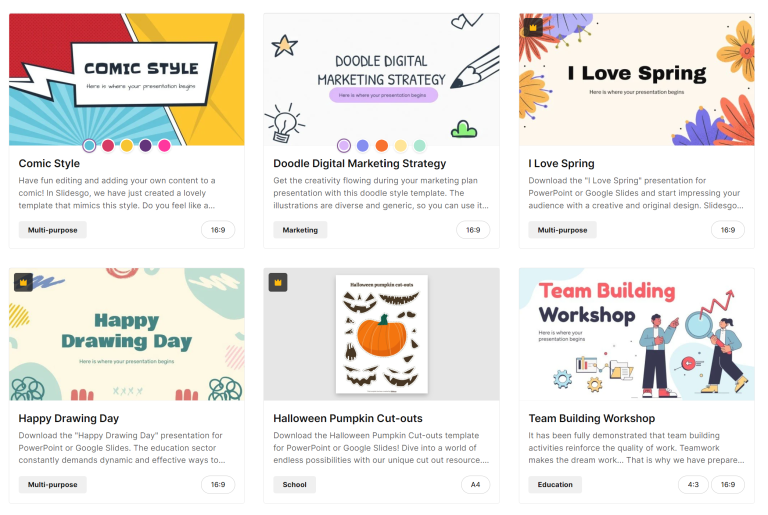
SlidesGo User Interface is pretty comprehensive. It is a wonderful tool for building presentations by providing a prompt or by downloading one of the several templates that you can open in Google Slides, open in Canva, or download as a PowerPoint. It goes above and beyond to provide other AI tools that would be beneficial in educational settings, such as Ice Breaker Generator, Exit Ticket Generator, Lesson Plan Generator, and PDF to PPT Convertor. Let’s dive into learning SlidesGo User Interface.
User Interface of the Menu Bar
The menu bar consists of the following tools:
- Create – Offers presentation template based on content type and industry. Also offers three major tools of SlidesGo which are AI Presentation Maker, Online Editor and AI Tools for Education.
- Explore – Offers presentation template based on color and style. Additionally presents featured content.
- AI – Provides a list of all the AI tools offered by SlidesGo, namely AI presentation maker, AI icebreaker generator, AI exit ticket, AI lesson plan generator and AI PDF to PPT convertor.
- Learn – Helps you learn not only SlidesGo, but also Google Slides and Microsoft PowerPoint. Additionally, it provides tips for giving wonderful presentations.
- Education – This section is exclusively for how schools and universities can utilize SlidesGo.
- More – This section is basically Template Library where you can find free photo, free icon, free illustrations, free videos and free more.
- Premium Plans – Provides benefits, costs and FAQs pertaining to the Premium Subscription. Go premium and gain unlimited access to the templates that you can download.
- Log In – Log Into your account to see favorites, downloads available and more.
- SlidesGo Logo – You can click on the SlidesGo Logo to go to the home page of SlidesGo.
You can download and open SlidesGo templates in PowerPoint, Google Slides, and Canva.

User Interface of AI Presentation Maker
The AI Presentation Maker prompt box consists of the following tools:
- Topic: Provide a descriptive topic for creating a presentation.
- Writing Tone: Choose a writing tone from unspecified, fun, creative, casual, professional, and formal.
- Language: Choose Auto Option from language or one of the 25 languages available.
- Number of Slides: You can have a minimum of 6 slides and a maximum of 14 slides.
- Style: Choose a style from minimalist, colorful, geometric and professional.

User Interface of Slides Editor
The top menu, side menu, and slide area are three major components of the online editor.
- Top Menu: Go to SlidesGo, Undo, Redo, Save, Name, Template Style, Share, Download and Present.
- Side Menu: Template, Text, Elements, Photos, Uploads, Text to Image, AI Presentation, AI Writer, AI Translator and tools.
- Slide Area: Background color, duplicate page, Add Page, Delete, and Zoom.

User Interface of AI Ice Breaker Generator
The AI Ice Breaker Generator consists of the following items:
- Describe the topic, what will be discussed: Simply type in a topic/lesson and try to be as descriptive as possible
- Who are the Participants: Choose your audience from Children (upto 12 years), Youth (13-18 years), University Students, Adults and Seniors.
- Number of Participants: Choose from Less than 5 participants, between 5 to 15 participants, more than 15 participants.
- Language: Choose from upto 25 languages, or just choose Auto.

User Interface of AI Exit Ticket
The AI Exit Ticket consists of the following items:
- Enter key topics or briefly describe your lesson: Simply type in a topic/lesson and try to be as descriptive as possible
- Grade: Choose from Pre-K, Elementary School, Middle School, High School, or University.
- Evaluation Type: Choose from Reciprocal Questioning, Project Based, Think Pair Share, Self Evaluation and Feedback.
- Language: Choose from upto 25 languages, or just choose Auto.

User Interface of AI Lesson Plan Generator
The AI Lesson Generator consists of the following items:
- Describe the Lesson Topic or Objective: Simply type in a topic and try to be as descriptive as possible
- Grade: Choose from Pre-K, Elementary School, Middle School, High School, or University.
- Classroom Setting: Choose from Remote, In-Person or Hybrid.
- Language: Choose from upto 25 languages, or just choose Auto.

User Interface of AI PDF to PPT Convertor
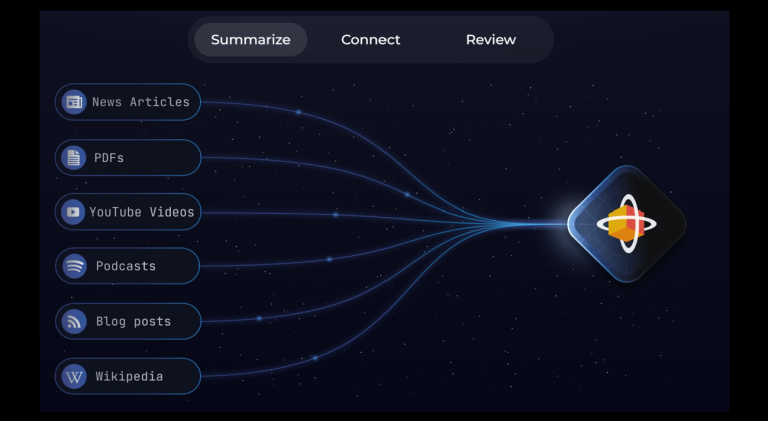
With the AI PDF to PPT Convertor tool, you can either upload a file or paste text from a file.
- Upload or Drop a File: Simply drop or upload a file and get your pdf.
- Paste Text Here: If you choose this option, you must follow 4 steps.
- Input Your Content
- Select a Style
- Review the Outline
- Download

Hope this article helped you get a better grip on SlidesGo and now you can create presentations with simplicity and elegance! To learn more about SlidesGo, do check out my blog The Essential Guide to SlidesGo.