Ultimate CAD File Maintenance using AutoCAD Purge, Audit, Overkill, and Recover Commands
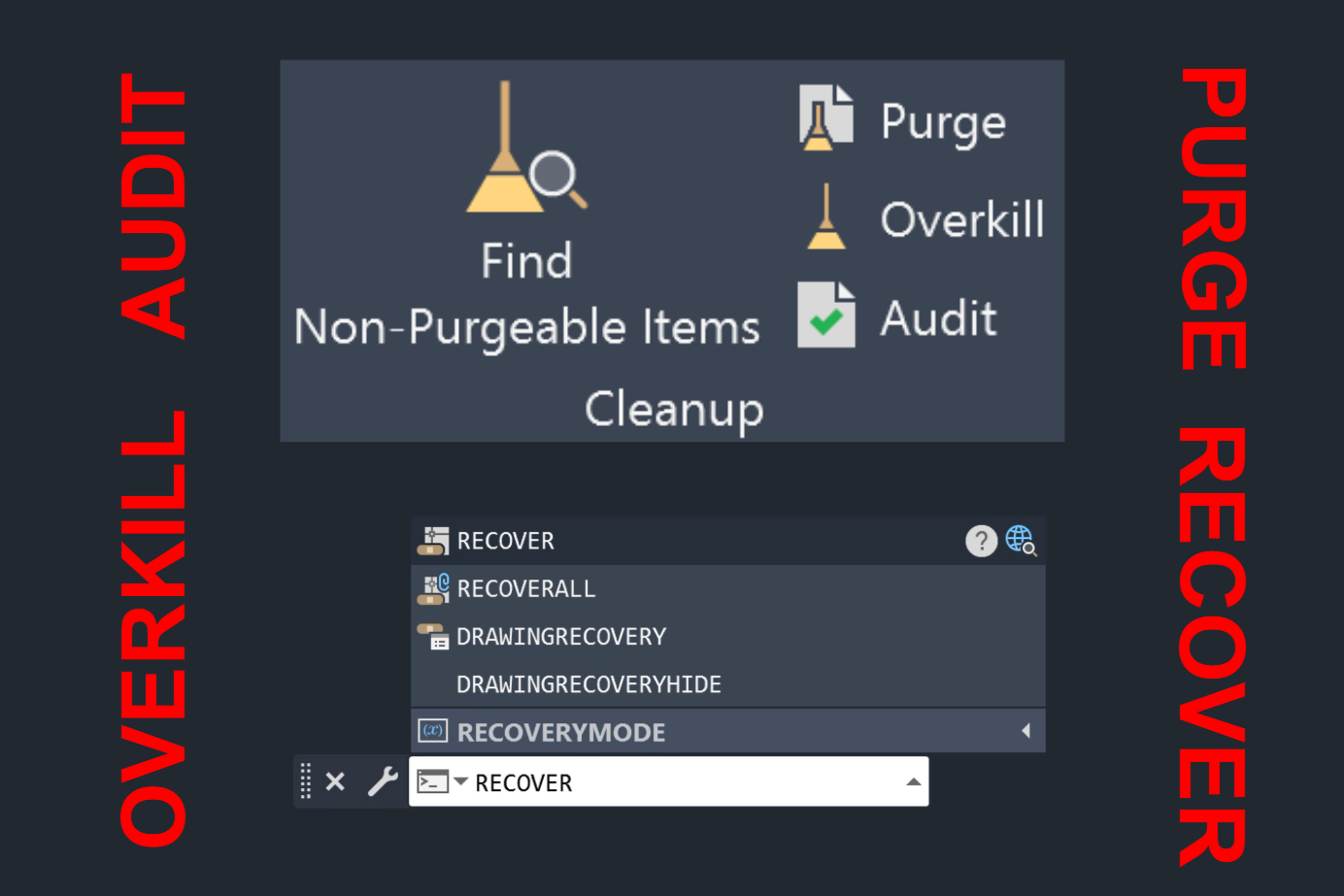
Have you ever wondered why your AutoCAD File is slow, showing unexpected behavior, or has a big file size? The answer is that your file has become cluttered with redundant data and unused elements. Mastering AutoCAD’s powerful file maintenance commands is essential to restore optimal performance and ensure file integrity. In this blog, you will learn the AutoCAD PURGE, AUDIT, OVERKILL, and RECOVER commands. Additionally, you will learn how to recover backup and temporary autosave files.
I regularly maintain AutoCAD drawing files through systematic purging and auditing—both for files received from subconsultants and my own working files. A daily maintenance routine has proven invaluable for preserving file integrity and preventing corruption.
To protect my files from the risk of corruption, I enable AutoSave for automatic backups every 10 minutes. I have a strong understanding of AutoCAD’s recovery system, including how to effectively use the RECOVER command, .BAK backup files, and .SV temporary save files to recover AutoCAD Files.
Lastly, the Overkill command is useful to remove duplicate items but should be used with caution. Personally, I have never used it in my professional career in order to prevent accidental data loss. It is good to know, but it should only be used in specific scenarios.
AutoCAD Purge
The Purpose and Function of AutoCAD Purge Command – Remove Unused Items
The Purge command is used in AutoCAD to remove unused items, such as layers, blocks, and linetypes, and also unnamed objects, such as zero-length geometry, empty text objects, and orphaned data. (Please don’t worry about the technical Jargon. If your file has these unnecessary elements, you will have the option to click on its checkboxes).
How to use the AutoCAD Purge Command?
To use the AutoCAD Purge Command, follow the steps below:
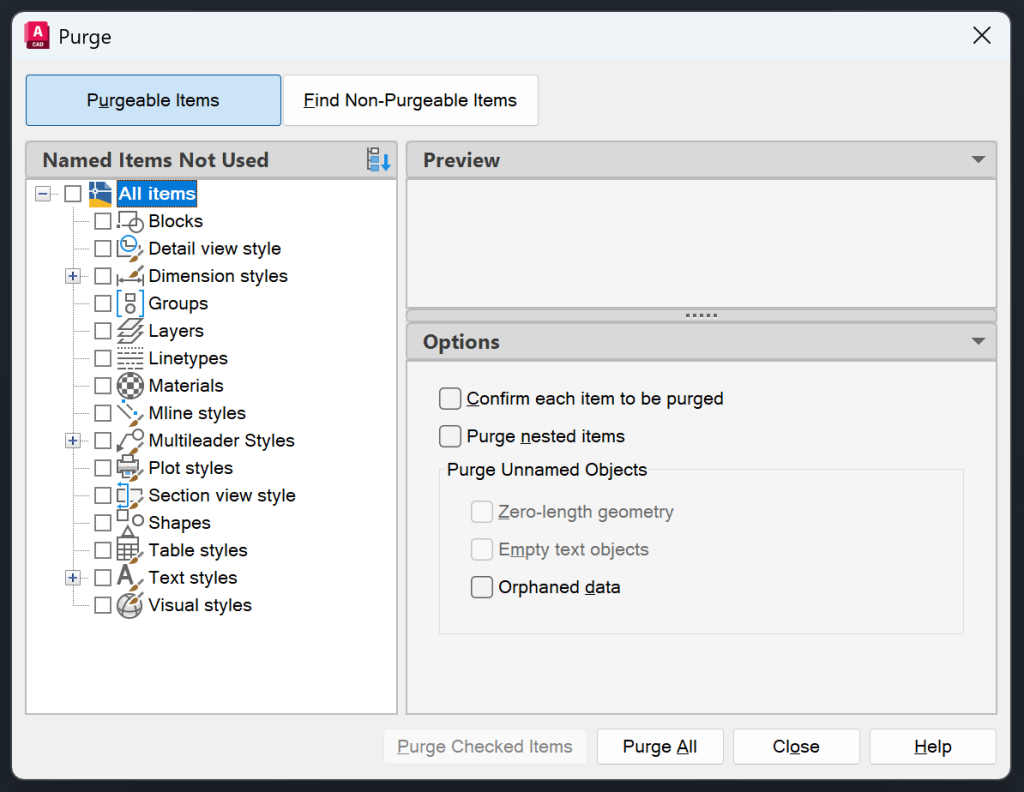
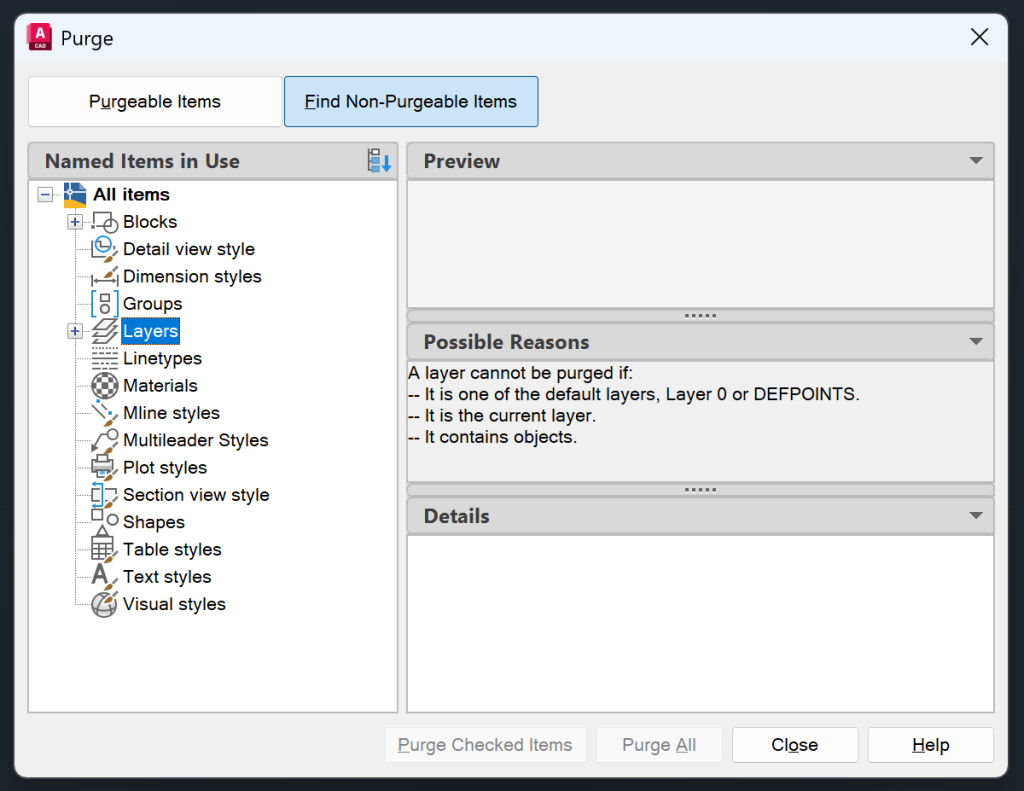
- Type PURGE in the command line. The Purge Dialog Box will open up.
- On the top row of the Purge Dialog Box, there are two options: Purgeable Items and Non-Purgeable Items.
- The Purgeable Items option is selected by default. Under the Named Items Not Used panel, you will notice a plus sign next to all purgeable items. You can click on the plus sign to see all purgeable items.
- Under the Options panel, you choose additional Purge Settings:
- Confirm each item to be purged
- Purge nested items
- Purge Unnamed Objects: Zero-length geometry, Empty text objects, Orphaned data.
- You can purge one item, multiple items or all items. To purge one or multiple items, click on the boxes next to the purgeable item in the Named Items Not Used panel, and hit Purge Checked Items. To purge all items, click on the Purge All button in the bottom of the Purge Dialog box.
- To see a list of non-purgeable items, click on the Find Non-Purgeable Items button. Here you will see not only the list of items that you cannot purge, but also possible reasons.
Checkout the GIF below to see the PURGE command in action.
AutoCAD Audit
The Purpose and Function of AutoCAD Audit Command – Fix Errors
The Audit Command is used to check and fix errors in the AutoCAD File. It’s a good practice to audit and purge your drawings daily.


How to use the AutoCAD Audit Command?
To use the AutoCAD Audit Command, follow the steps below:
- Type AUDIT in the command line.
- The command line will prompt you with a question: FIX ANY ERRORS DETECTED. Type Y if you wish to fix errors and N if you wish to not fix errors.
- The file will get audited, and after the audit is complete, it will list the Total Errors Found, Total Errors Fixed, and Erased Objects.
Checkout the GIF below to see the AUDIT Command in action.
AutoCAD Overkill
The Purpose and Function of AutoCAD Overkill Command – Delete Duplicate Objects
The Overkill command removes overlapping objects and merges partially overlapping or aligned end-to-end objects.
How to use the AutoCAD Overkill Command?
To use the AutoCAD Overkill Command, follow the steps below:
- Type OVERKILL in the command line.
- Select the objects on which you want to perform overkill. To perform overkill on all objects in AutoCAD, select all items in the AutoCAD File.
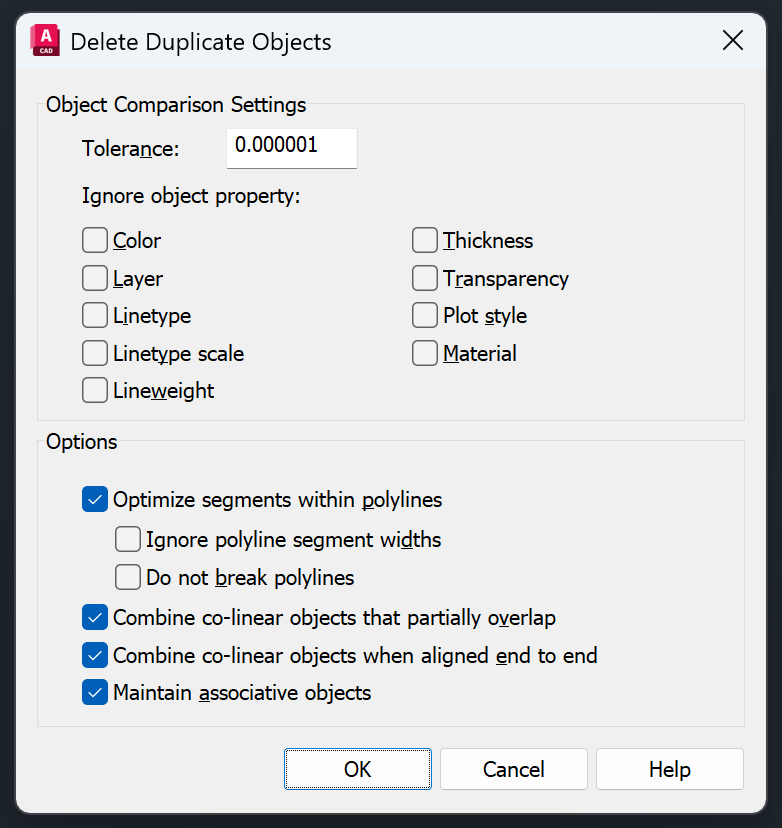
- The Delete Duplicate Objects Dialog Box will open up. Here you can choose the following options (checkout AutoCAD Documentation to Learn how each item functions):
- Tolerances
- Ignore Object Property (Color/Layer/ Linetype/ Linetype Scale/ Lineweight/ Thickness/ Transparency/ Plot Style/Material)
- Options
- Optimize Segments within Polylines (Ignore Polyline Segment Widths/ Do not Break Polylines)
- Combine co-linear objects that partially overlap
- Combine co-linear objects when aligned end to end
- Maintain associative objects
- Choose the options that you desire and hit OK.
In the GIF below, I show you how there are two overlapping lines. The Selection Cycle is on so you can see that these are two overlapping polylines. After I run the Overkill command, we are just left with one polyline.
AutoCAD Recover
The Purpose and Function of AutoCAD Recover Command
There are instances when the AutoCAD File is corrupt, and you cannot even open it. In that instance, you will need to use the RECOVER command. You can also recover an AutoCAD File using the backup file and temporary AutoSave Files.
How to Use AutoCAD Recover Command to recover AutoCAD Drawing File?
There are two ways you can use the RECOVER command in your drawing.
First, open the corrupted drawing. It will prompt you to RECOVER. Hit recover, and then your file will automatically AUDIT.
Alternatively, you can just open a new AutoCAD Drawing and type RECOVER in the command line. You will be prompted to choose the file you wish to recover. Choose the file, and AutoCAD will automatically AUDIT to fix errors and recover the file.
How to Recover AutoCAD File using .bak file?
The .bak files in AutoCAD are backup files that are the previous version of your AutoCAD files (just before the last save). In order to recover a .bak file, follow the steps below:
- Right-click on the .bak file that you wish to recover and change the extension to .dwg.
- Open the .dwg file and determine which elements were recovered and not recovered.
If you wish, make a copy of the .bak file before changing its extension. Recovering a backup from a .bak file may seem complicated, but it is very simple. Check out the GIF below to learn how to do it.
How to AutoSave AutoCAD Drawings?
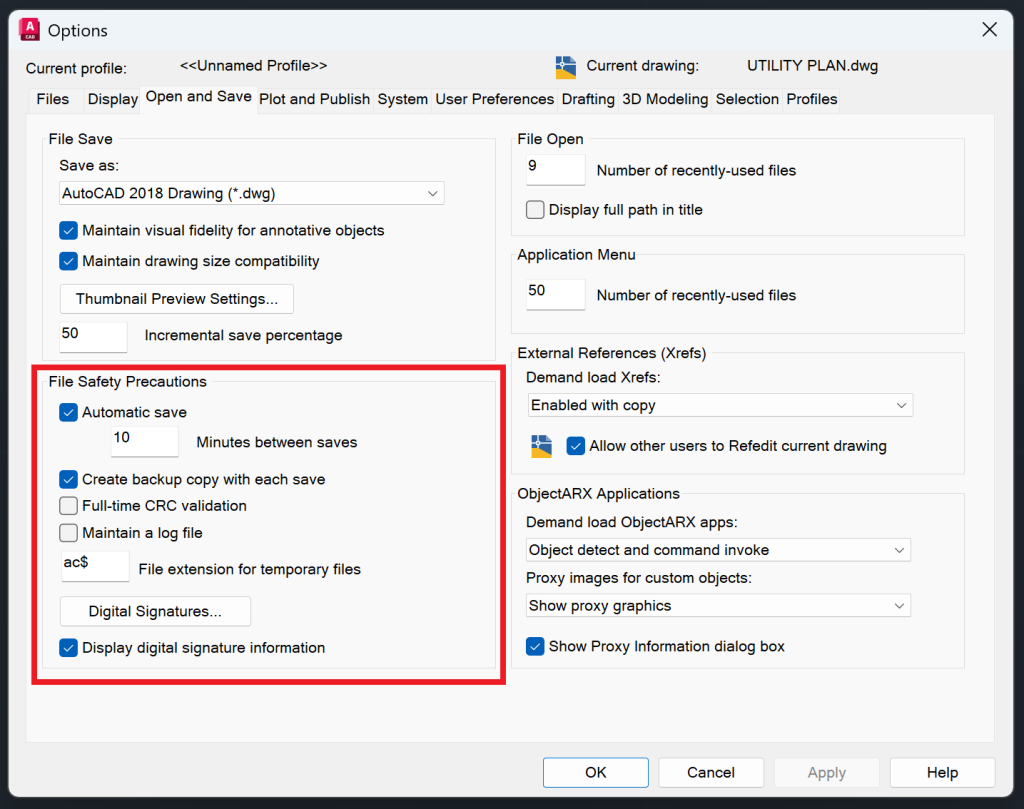
By default, AutoCAD automatically Auto Saves your drawing at 10-minute intervals. You can update the frequency of AutoSave of your AutoCAD file in the Options Dialog Box. Follow the steps below to do so:
- Type OP in the command line to open the Options Dialog Box.
- Click on Open and Save Tab.
- In the File Safety Precautions section, the Automatic Save (.sv) and Create Backup Copy with Each Save (.bak) options are checked by default. The file will automatically save every 10 minutes by default.
- You can update the AutoSave Time and hit OK.
How to Recover AutoCAD File using .sv file?
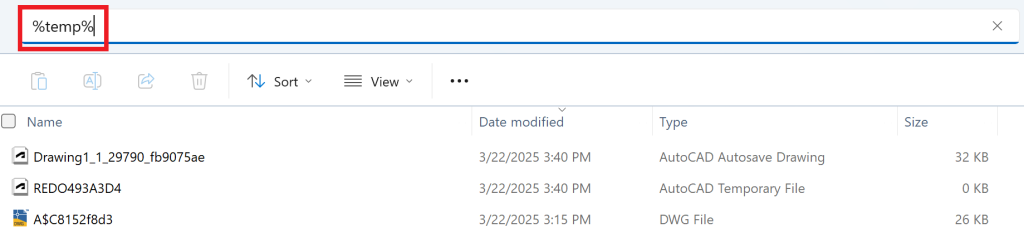
The AutoCAD Temporary Files are saved as .sv files in your %temp% folder. To recover your AutoCAD File using the AutoCAD Temporary File (.sv) file, follow the steps below:
- Type %temp% in your Windows File Path Bar (I’m not sure if that’s what it’s called, but the picture below illustrates what I mean).
- You will see a list of all temporary files. I like to sort it by date modified.
- Copy the .sv or AutoCAD Temporary File that you need, and save it in your project folder.
- Change the extension to .dwg and it will be ready for your use.
To keep your drawing file clean, your first line of action should be purging and auditing your AutoCAD files daily. If you start seeing unexpected AutoCAD behavior, that’s a red flag, and you should immediately purge and audit your drawing. Ensure that you Auto-Save your drawing at frequent intervals and save it often. If your file ever gets corrupt, you now have multiple ways to recover it.
I hope you enjoyed learning about File Maintenance in AutoCAD. To learn more about other aspects of AutoCAD, feel free to checkout 25 Foundational Concepts of AutoCAD.